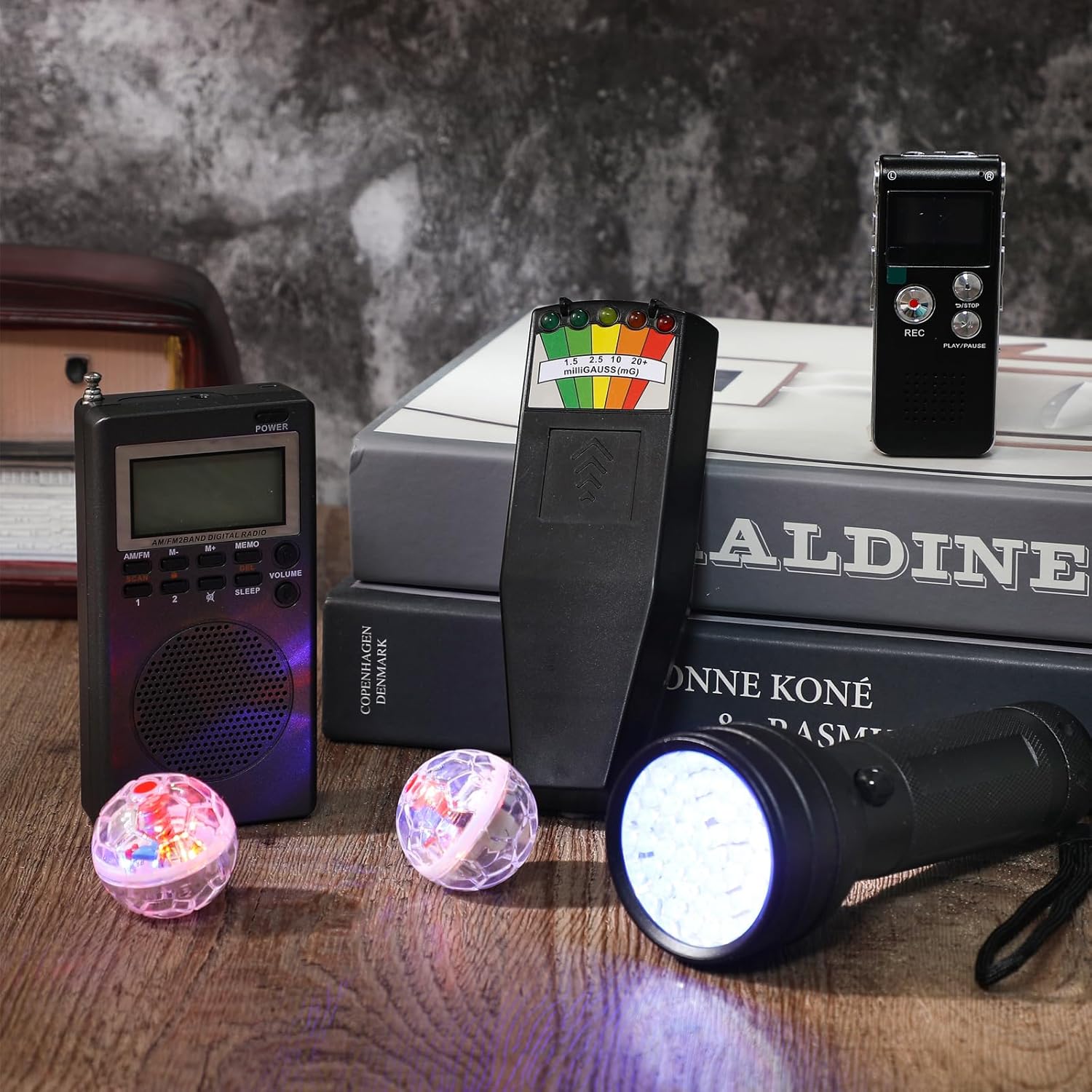
Paranormal investigators spend hours capturing audio in dark, quiet locations, but the real work starts when you sit down to analyze those recordings. Whether you’re examining a potential EVP clip or trying to separate a whisper from background noise, Praat voice analysis tutorial knowledge gives you a serious edge. Praat is a free, open-source acoustic analysis tool built for phonetic research, and it happens to be one of the most powerful pieces of software you can pair with your EVP recorder and audio capture gear.
At Haunt Gears, we talk a lot about hardware, EMF meters, thermal cameras, digital recorders. But equipment only gets you halfway. Knowing how to process and measure what you’ve captured is what separates a casual ghost hunt from a credible investigation. Praat lets you visualize pitch, formants, and intensity in any audio file, which means you can objectively evaluate anomalous sounds instead of relying on guesswork.
This guide walks you through Praat step by step, from installation to extracting measurable acoustic data from your recordings. You don’t need a linguistics degree to follow along, just a computer, an audio file, and the willingness to learn. By the end, you’ll know how to read spectrograms, track pitch contours, and measure intensity levels, skills that apply whether you’re conducting phonetic research, clinical voice assessment, or reviewing evidence from your latest investigation.
Before you begin: audio quality, files, and goals
Before you open Praat and start measuring anything, the quality of your source audio directly determines the accuracy of your results. If you follow this praat voice analysis tutorial with a noisy, clipped, or distorted recording, the software will measure the interference just as faithfully as it measures the voice. Getting your files prepared and your goals defined before you start saves you from significant frustration and wasted effort later.
Choose the right audio quality
Praat works best with clean, single-channel (mono) recordings captured in a quiet environment. Background noise, room reverb, and electromagnetic interference all contaminate the acoustic signal and make it harder to isolate pitch contours or formant tracks accurately. For paranormal audio work, this means you want to work with your clearest clips, not a raw full-session file filled with constant wind or static.
The cleaner your source audio, the more accurate and trustworthy your Praat measurements will be.
When evaluating a recording before you import it, check for these common problems:
- Clipping: Waveform peaks that appear flat-topped mean the signal was recorded too loud and acoustic data is permanently lost
- Low signal-to-noise ratio: The target sound is buried under ambient noise
- Excessive reverb: Reflections smear formant patterns and confuse pitch tracking
- Sample rate mismatch: Inconsistent rates between files cause analysis errors
Aim for recordings with a sample rate of at least 44,100 Hz and a bit depth of 16-bit or higher for reliable measurements.
Supported file formats
Praat natively reads WAV and AIFF files, and WAV is what you should use whenever possible. WAV is an uncompressed format, which means no audio data gets discarded during encoding. MP3, AAC, and other compressed formats use lossy compression that removes acoustic information, which can distort formant frequencies and pitch data in ways that are hard to detect and impossible to recover.
If your recorder saves files in a compressed format, convert them to WAV before importing into Praat. Windows, macOS, and Linux all include built-in tools that handle this conversion without requiring third-party software.
| Format | Praat Compatible | Recommended |
|---|---|---|
| WAV | Yes | Yes |
| AIFF | Yes | Yes |
| MP3 | No (convert first) | No |
| FLAC | No (convert first) | No |
| AAC | No (convert first) | No |
Set a clear analysis goal
Knowing what you want to measure before you open Praat keeps your workflow focused and your conclusions defensible. Are you checking whether a sound falls within the human vocal pitch range of roughly 85 Hz to 255 Hz? Are you comparing formant frequencies across two recordings? Are you tracking intensity spikes at specific time points? Each goal points to a different set of Praat tools.
Write down one to three specific questions you want your analysis to answer. For example: "Does this sound show a fundamental frequency consistent with human speech?" A defined question prevents you from collecting data you don’t need and makes it much easier to interpret your results once you have them.
Step 1. Record or import a clean voice sample
This praat voice analysis tutorial starts with getting audio into the software. When you launch Praat, you’ll see two windows: the Praat Objects window (where you manage files and recordings) and the Praat Picture window (where graphs render). All your work begins in the Objects window. You can either record directly through Praat or import a file you already have on disk.
Recording directly in Praat
Open the Objects window, click New, and select Record mono Sound. A recording dialog opens with a volume meter and transport controls. Before you hit Record, set your sample rate to 44100 Hz using the dropdown at the top of the dialog. Speak clearly at a consistent distance from your microphone, roughly six to eight inches, to avoid level fluctuations. When you finish, click Stop, then click Save to list and give the recording a descriptive name like "sample_01". Your recording now appears as a Sound object in the Objects window and is ready for analysis.
Keep recordings short and focused. A two to five second sample of a single, clear voice is far easier to analyze accurately than a long clip with gaps and variation.
Importing an existing file
If you already captured audio with an external recorder, click Open in the Objects window and select Read from file. Navigate to your WAV or AIFF file and click Open. Praat will load the file and display it as a Sound object in the list. Compressed formats like MP3 will not load directly, so convert them to WAV first using a tool like Windows Media Player or the macOS built-in QuickTime Player export function.
Once your Sound object appears in the list, click on it to select it before moving to any analysis step. A single click highlights it in blue, which tells Praat that all subsequent commands and measurements apply to that specific file. With your audio loaded and selected, you’re ready to set up your analysis views.
Step 2. Set up Praat views and analysis settings
With your Sound object selected in the Objects window, click View & Edit to open the SoundEditor. This is where this praat voice analysis tutorial gets visual. The SoundEditor displays your waveform at the top and a spectrogram panel beneath it, giving you a time-aligned view of amplitude and frequency content simultaneously.
Open the SoundEditor window
The SoundEditor is your primary workspace for all visual inspection before you run formal measurements. Click and drag across any section of the waveform to select a time region you want to examine more closely. Once you select a region, Praat limits pitch and formant analysis to that interval, which lets you focus on a specific word, syllable, or anomalous sound without noise from the surrounding recording interfering with your results.
Selecting a tight, well-defined time region before you measure anything significantly improves the precision of every value Praat returns.
Configure the spectrogram and analysis settings
Before you extract any numbers, adjust the spectrogram settings to match your analysis goals. Go to the Spectrogram menu inside the SoundEditor and select Spectrogram settings. For standard voice analysis, use a window length of 0.005 seconds, a frequency range from 0 to 5000 Hz, and a dynamic range of 50 dB. These settings reveal both the broad spectral shape and fine formant structure clearly.

Next, check your pitch and formant display settings. Under the Pitch menu, select Pitch settings and set the pitch floor to 75 Hz and the ceiling to 300 Hz for typical adult speech. Under the Formants menu, select Formant settings and use these values as your starting point:
- Number of formants: 5
- Maximum formant (female voices): 5500 Hz
- Maximum formant (male voices): 5000 Hz
- Window length: 0.025 seconds
These adjustments prevent Praat from tracking noise as a formant and keep your pitch contour from jumping erratically between harmonics during measurement.
Step 3. Measure pitch and intensity
With your spectrogram configured and your time region selected, you’re ready to extract real numbers from your recording. This is where a praat voice analysis tutorial moves from setup to actual data. Pitch and intensity are the two most immediate acoustic properties you can pull from any voice sample, and Praat gives you multiple ways to access both with precision.
Extract pitch measurements
With your time region highlighted in the SoundEditor, go to the Pitch menu and select Get pitch. Praat returns a single value representing the mean fundamental frequency (F0) in Hz for the selected region. For a deeper look, go to the Objects window, select your Sound object, and navigate to Analyze periodicity and then To Pitch. This creates a new Pitch object in your list that stores F0 values across the entire recording timeline.

A pitch value that falls consistently between 85 Hz and 255 Hz is within the range of typical human adult speech and warrants closer examination if it appears in an otherwise unexplained recording.
To see pitch statistics for your selected region, open the Pitch object, then go to Query and run the following commands in sequence. Each returns a single value you should record:
- Get minimum: returns the lowest F0 in the selection
- Get maximum: returns the highest F0
- Get mean: returns the average F0
- Get standard deviation: shows how much pitch varies across the selection
Measure intensity levels
Intensity in Praat is measured in decibels (dB) and reflects how loud the signal is at each point in time. To generate intensity data, select your Sound object in the Objects window, go to Analyze intensity, and choose To Intensity. Set the minimum pitch to 75 Hz and click OK. This creates an Intensity object in your list.
Open that object and use Get maximum intensity and Get mean intensity from the Query menu to pull the values you need. A sudden intensity spike in a quiet recording is one of the clearest acoustic markers worth flagging for further review, and Praat gives you the exact dB value to document it.
Step 4. Measure formants and export results
Formants are the resonant frequency peaks produced by the shape of the vocal tract, and they carry the information that makes one vowel sound distinct from another. In this praat voice analysis tutorial, formants F1 and F2 are the most diagnostically useful values because they define where a vowel sits in acoustic space and help you determine whether a sound fits a recognizable human speech pattern.
Extract formant frequencies
Select your Sound object in the Objects window, go to Analyze spectrum, and choose To Formant (burg). In the dialog, set the maximum number of formants to 5 and the maximum formant value to 5500 Hz for a female or child voice, or 5000 Hz for a male voice. Use a window length of 0.025 seconds and a pre-emphasis from 50 Hz. Click OK and Praat generates a Formant object in your list.
F1 and F2 values together map directly onto vowel quality, so if an unexplained sound shows stable F1/F2 values consistent with a specific vowel, that is significant acoustic evidence worth documenting.
Open the Formant object and run these queries from the Query menu to pull specific values. Record each result alongside the time interval you analyzed:
- Get first formant: returns F1 in Hz for the selected region
- Get second formant: returns F2 in Hz
- Get third formant: returns F3, which contributes to voice quality distinctions
- List formant values: outputs a time-stamped table of all formant tracks across the full selection
Export your data
Once you have your measurements, saving them outside Praat is essential for documentation and comparison across sessions. Select your Formant or Pitch object in the Objects window, go to Save, and choose Save as text file. This creates a plain-text file with all time-stamped values that you can open in any spreadsheet application for further review.
For a cleaner output you can work with directly in a spreadsheet, select your object and use File > Save as short text file, which strips the metadata headers and leaves only the raw numerical data in rows and columns. Keeping a consistent naming convention for your exported files, such as session-date-clip-ID, makes cross-session comparisons significantly faster.

Next steps
You now have a complete workflow for extracting pitch, formants, and intensity from any voice recording. This praat voice analysis tutorial covers every core measurement you need to evaluate whether an unexplained sound carries the acoustic fingerprint of human speech, and your documentation process is now built on objective, repeatable numbers rather than subjective impressions.
From here, practice matters most. Run the same workflow on known reference recordings first so you build a clear baseline before you start comparing anomalous clips. The more sessions you log and compare, the faster you’ll recognize what typical acoustic data looks like and what genuinely warrants a second look.
Good analysis always starts with good source material. If you want recordings clean enough to trust your Praat measurements, browse professional-grade paranormal investigation gear and build a kit that gives your fieldwork a solid foundation from the first capture.