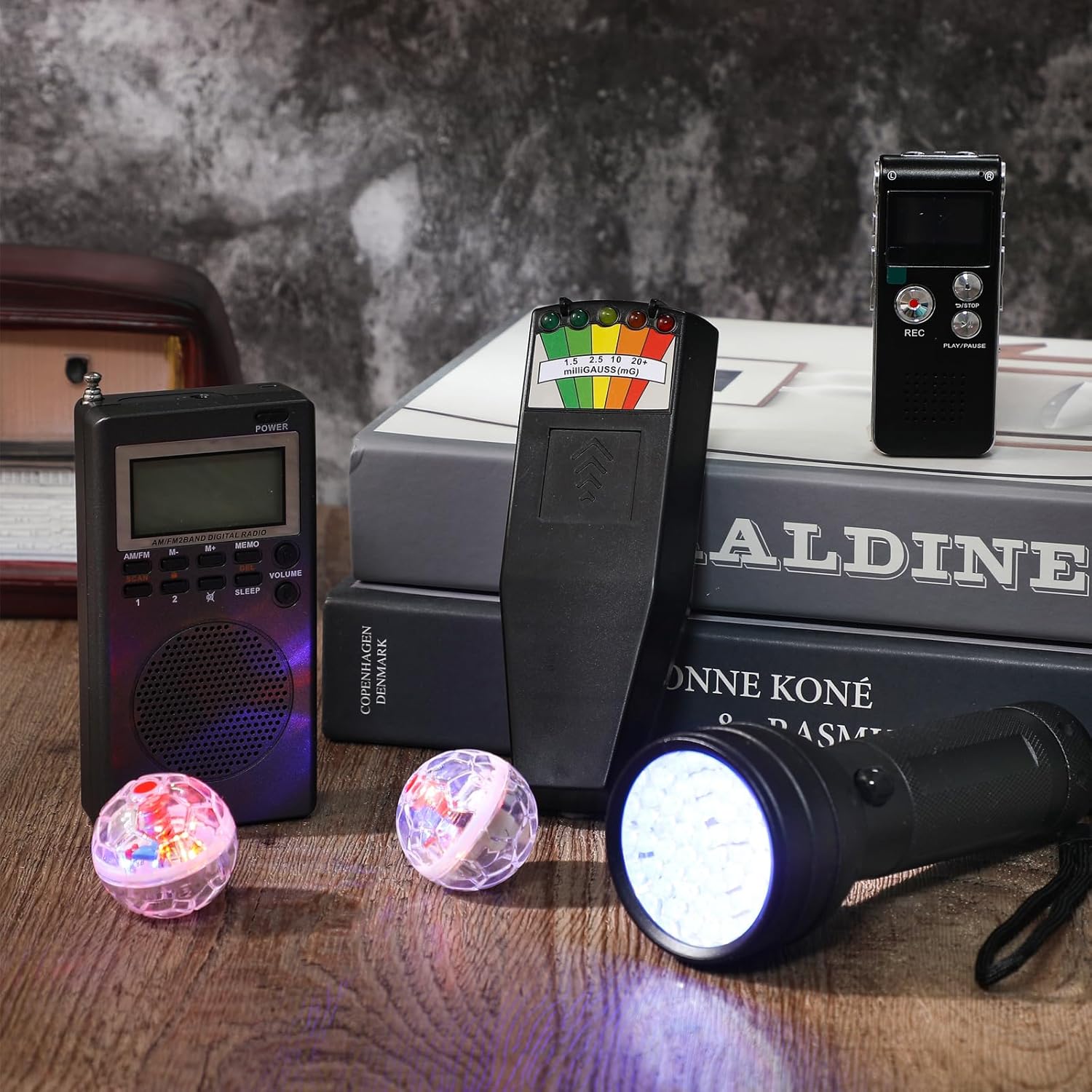
Dead batteries during an investigation aren’t just inconvenient, they mean missed evidence. Whether you’re powering EMF meters, flashlights, or EVP recorders, a reliable charger is non-negotiable. Nitecore chargers are a popular choice among paranormal investigators for good reason, but their button combinations and LED indicators aren’t always intuitive. If you’ve been searching for clear Nitecore battery charger instructions, you’re in the right place.
At Haunt Gears, we test and depend on the same equipment we recommend, and that includes the chargers that keep everything running. Below, we break down how to operate the most common Nitecore charger models, covering button functions, indicator lights, charging modes, and the small details the manual doesn’t always make obvious.
Before you start: pick the right manual and cells
Not all Nitecore chargers work the same way, and following generic nitecore battery charger instructions without checking your specific model first will get you nowhere. The model number printed on the bottom of your unit determines which button layout, which supported chemistries, and which charging modes apply to you. Treating one model’s instructions as universal is one of the most common mistakes new users make, and it can lead to incorrect current settings or missed features.
Find your model number
Your model number is stamped on a label on the underside of the charger. Common paranormal investigation models include the UI1, UI2, LC10, i2, i4, Q6 Plus, and Digicharger D4. Once you have the number, download the official PDF manual directly from Nitecore’s site at nitecore.com. Each manual covers channel count, supported cell sizes, and button behavior specific to that unit.
Always use the manual for your exact model. A UI2 and an i2 look similar but handle current selection and mode switching differently.
Match your batteries to the charger’s specs
Before loading any cells, verify that your battery chemistry and size fall within the charger’s accepted range. Most Nitecore chargers handle Li-ion (3.6V/3.7V), IMR, and NiMH/NiCd cells, but not every model covers every type. Check the slot markings or the specifications table in your manual to confirm compatibility.
| Chemistry | Common Sizes Supported | Typical Max Current |
|---|---|---|
| Li-ion / IMR | 18650, 21700, 26650, 18350 | 0.5A to 3A |
| NiMH / NiCd | AA, AAA, C | 0.25A to 1A |
| LiFePO4 | 26650, 18650 | 0.5A to 1A |
Paranormal gear often relies on 18650 Li-ion cells, so confirm your charger explicitly lists that size and the correct max charging current before connecting anything. Loading an unsupported cell type can damage both the battery and the charger itself.
Step 1. Set up the charger safely
Before you follow any nitecore battery charger instructions, take a minute to set up properly. Skipping this step causes more problems than any button mistake will. Place the charger on a hard, flat, non-flammable surface, away from fabric, paper, or anything that holds heat. Nitecore chargers are well-built, but all lithium-ion charging should happen where you can monitor it.
Connect power and inspect the unit
Plug the charger into a stable wall outlet, not a power strip shared with high-draw devices. Once powered on, the indicator LEDs should briefly flash or cycle through colors to confirm the unit is functional. If nothing lights up, check the cable connection and the outlet before loading any batteries.
Never charge batteries in an unventilated space or leave the charger unattended for extended periods, especially overnight.
Load batteries correctly
Slide each cell into a slot with the positive terminal facing the spring side, as marked by the plus symbol inside the bay. Press the battery down until the contact clicks into place. A loose cell will either fail to register or cause an incorrect reading on the display, so confirm each slot shows a charge status before walking away.
Step 2. Use the buttons and select current
Most Nitecore battery charger instructions describe a MODE button that cycles through available options and a SELECT button (sometimes labeled CURRENT or SET) that confirms your choice. Press MODE once after loading your batteries to activate manual control. On models like the i4 and D4, the charger auto-detects chemistry and starts at a default current, so you only need to intervene if you want to adjust it.

Activate and cycle modes
Press MODE to cycle through available charging modes such as CC/CV for Li-ion or Trickle for NiMH. Each press advances to the next option, and the current channel or slot indicator highlights to show which bay is active. Hold MODE for two to three seconds on supported models to lock your selection.
If you don’t press any button within 30 seconds on most models, the charger locks in the current default and begins charging automatically.
Set the charging current
After selecting the mode, press SELECT to step through available current levels for that chemistry. Lower current settings like 0.25A or 0.5A are safer for older or smaller cells, while 1A or higher suits fresh 18650s when you need a faster turnaround.
| Current Setting | Best For |
|---|---|
| 0.25A | AA/AAA NiMH, small Li-ion |
| 0.5A | Standard 18650, first charge on new cells |
| 1A | Healthy 18650, 21700 cells |
| 2A+ | High-capacity 26650, fast top-ups |
Step 3. Read the lights and charging status
Once your batteries are loading and running, the LED indicators do all the work of communicating progress. Most nitecore battery charger instructions explain what each light color means, but the information is easy to miss in dense manuals. Reading the lights correctly tells you whether your cells are charging normally, fully topped off, or flagging a problem.
A slow pulse almost always means the charger detected a low-voltage cell and is running a recovery charge first before switching to full current.
LED color guide by model type
The color and behavior of each LED varies by model, but the pattern below covers most Nitecore units accurately.

| LED Behavior | What It Means |
|---|---|
| Red, steady or slow pulse | Charging in progress |
| Green, steady | Charge complete |
| Red/green alternating | Recovery or trickle mode active |
| No light | No battery detected or poor contact |
When the green light holds steady
A solid green light means the cell reached full charge and the charger stopped current flow. Remove the battery within a few hours of seeing this; leaving cells on the charger indefinitely after completion shortens their cycle life over time.
Step 4. Fix common problems and errors
Even with solid nitecore battery charger instructions in hand, you’ll occasionally hit a slot that won’t register or a light pattern that looks wrong. Most issues trace back to contact problems, incompatible cells, or a deeply discharged battery, not a broken charger.
If a slot shows no light after loading a cell, remove the battery, clean both terminals with a dry cloth, and reseat it firmly before assuming anything is wrong.
Troubleshoot by symptom
Check your symptoms against the table below before calling anything broken. Most fixes are simple and require no tools.
| Symptom | Likely Cause | Fix |
|---|---|---|
| No light after inserting cell | Poor contact or dead cell | Clean terminals, reseat, or test a known good battery |
| Error flash on display | Voltage out of accepted range | Remove cell immediately; do not force charge |
| Charging stops early | Cell reached max voltage | Normal behavior; remove and use the battery |
| One slot charges, other doesn’t | Current draw limit reached | Charge one cell at a time |
When to retire a cell
A battery that triggers an error flash repeatedly or won’t hold a charge after three full cycles needs to be replaced, not recharged again. Continuing to charge a swollen or faulty cell puts both the charger and your safety at risk. Watch for these warning signs before loading any cell:
- Casing that looks swollen or deformed
- Capacity that consistently drops below 50% after a full charge
- Error flashes across more than one charger

Quick recap
Following these nitecore battery charger instructions keeps your cells healthy and your gear ready when you need it. Start by confirming your exact model number and matching your battery chemistry to the charger’s accepted specs. Load cells with the positive terminal toward the spring, then use the MODE and SELECT buttons to set the right current for your cell type.
Watch the LED indicators closely during charging. Red means charging is in progress, and a solid green means the cell is full. Remove batteries within a few hours of seeing green to protect their long-term cycle life.
Any symptom like error flashes or a slot that won’t register usually points to a contact issue or an out-of-range cell, not a broken charger. Clean the terminals, reseat the battery, and test with a known good cell first.
Ready to gear up for your next investigation? Browse the paranormal investigation equipment at Haunt Gears and find everything you need to keep your fieldwork running without interruption.